
Data Connections Overview
DataXpert supports a range of data sources, all reached from one place: Data → Add New Data Source.
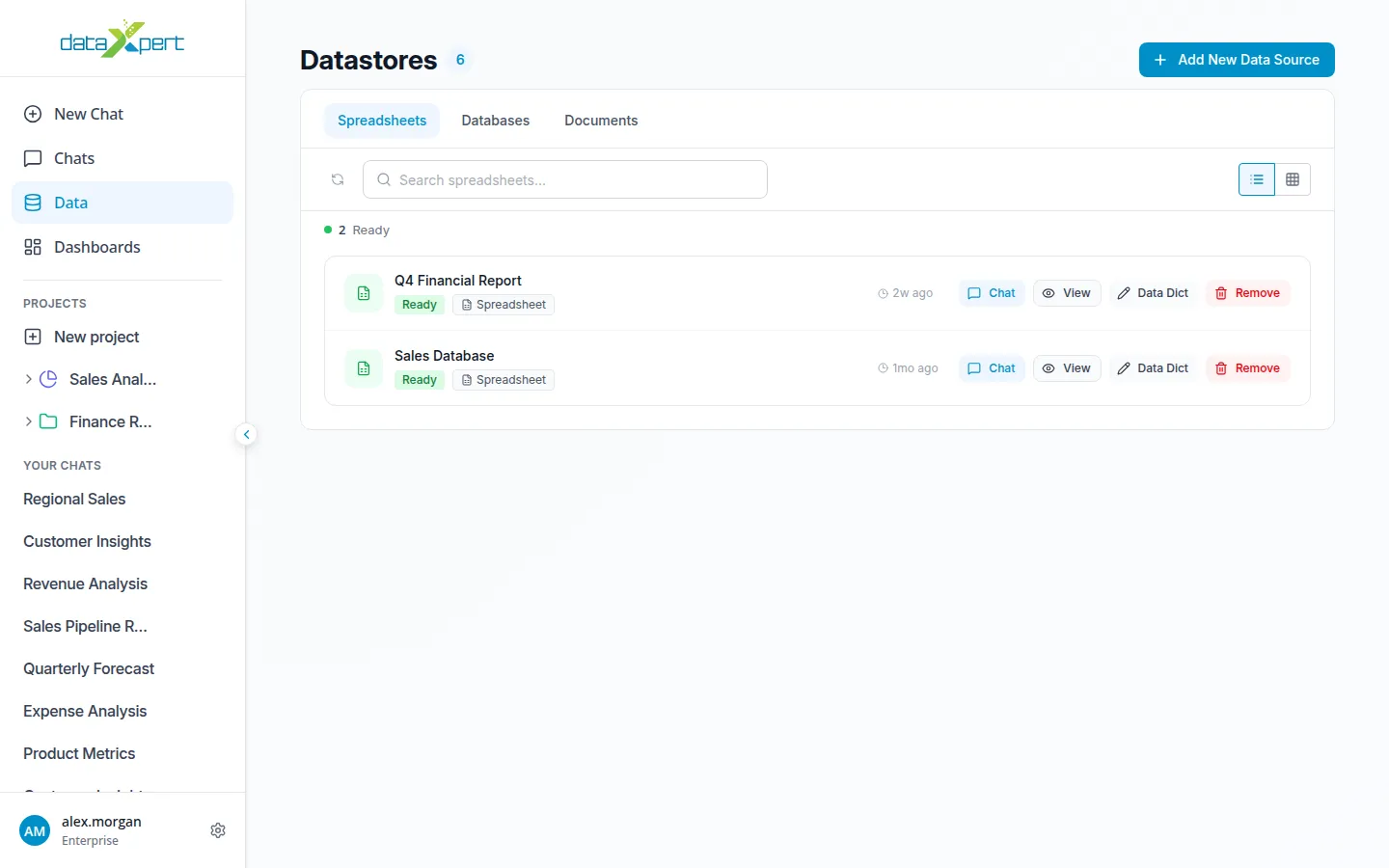
Where everything lives
Section titled “Where everything lives”- Click Data in the sidebar to open the Datastores list.
- Click Add New Data Source at the top right.
- The New Datastore screen shows three upload cards in a row, plus a Connect Data Source panel below for databases and business-app connectors.
Upload cards
Section titled “Upload cards”- Single Table — one CSV (
.csv), TXT (.txt), or Excel (.xls/.xlsx) file. See Single Table Upload. - Multi Table — multiple files together, or a multi-sheet Excel workbook. Requires at least 2 tables. See Multi-Table Upload.
- Select Files — documents (PDF, DOC, DOCX, PPT, PPTX, TXT) you want to ask questions about. See Docstore.
Connect Data Source panel
Section titled “Connect Data Source panel”Below the upload cards, the database panel shows connector cards for databases and business apps. Click a card and fill in its connection form. See Database & Business-App Connections for the full list and per-connector field details.
Sample datasets
Section titled “Sample datasets”The New Datastore screen has inline sample buttons — Try sample file, Use sample docstore, Try sample database — that create a sample data source in one click. See Sample Datasets.
The Datastores list
Section titled “The Datastores list”Connected sources appear on the Datastores list with three tabs:
- Datastores — all sources together.
- Databases — database and business-app connections.
- Documents — uploaded documents.
Each card has actions for Chat, View (spreadsheets only), Data Dict (open the data dictionary), Retry (for failed sources), and Remove.
Data dictionaries
Section titled “Data dictionaries”DataXpert builds a data dictionary for each connected source so it understands your data — table names, columns, data types, and how tables relate to each other. You can enrich each column with a description to make answers more precise. See Data Dictionaries.